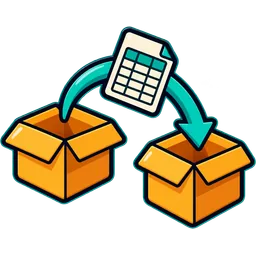

Importing is the fastest way to get a c-store price book in. A typical store has a few thousand items; the import takes minutes.
Prepare the file
Export products from your old register as CSV or Excel. You want at least these columns:
- Product name
- Barcode (UPC or EAN), keep leading zeros
- Category, and brand if you have it
- Cost price and selling price
- Tax group
- Unit (each, pack, carton) and, for cartons, how many units inside
Optional: opening stock per store, alert level, expiry dates.
Open the file and check two things: barcodes did not turn into numbers like 1.23E+11 (format the column as text), and prices use a dot for decimals.
Import
- Go to Products → Import products.
- Download the template if your columns do not match, and paste your data into it.
- Upload the file and review the preview.
- Fix anything flagged: duplicate barcodes, missing prices, unknown categories.
- Confirm. Products appear on the POS screen straight away.
After the import
- Flag age-restricted categories: see age-restricted categories.
- Add quick keys for items without barcodes: coffee, fountain drinks, hot food.
- Add opening stock if your file did not include it.
Would rather we did it? Send the file from the contact page; the first import is free.